iOS 18 Photos & Genmoji: The Ultimate AI Guide
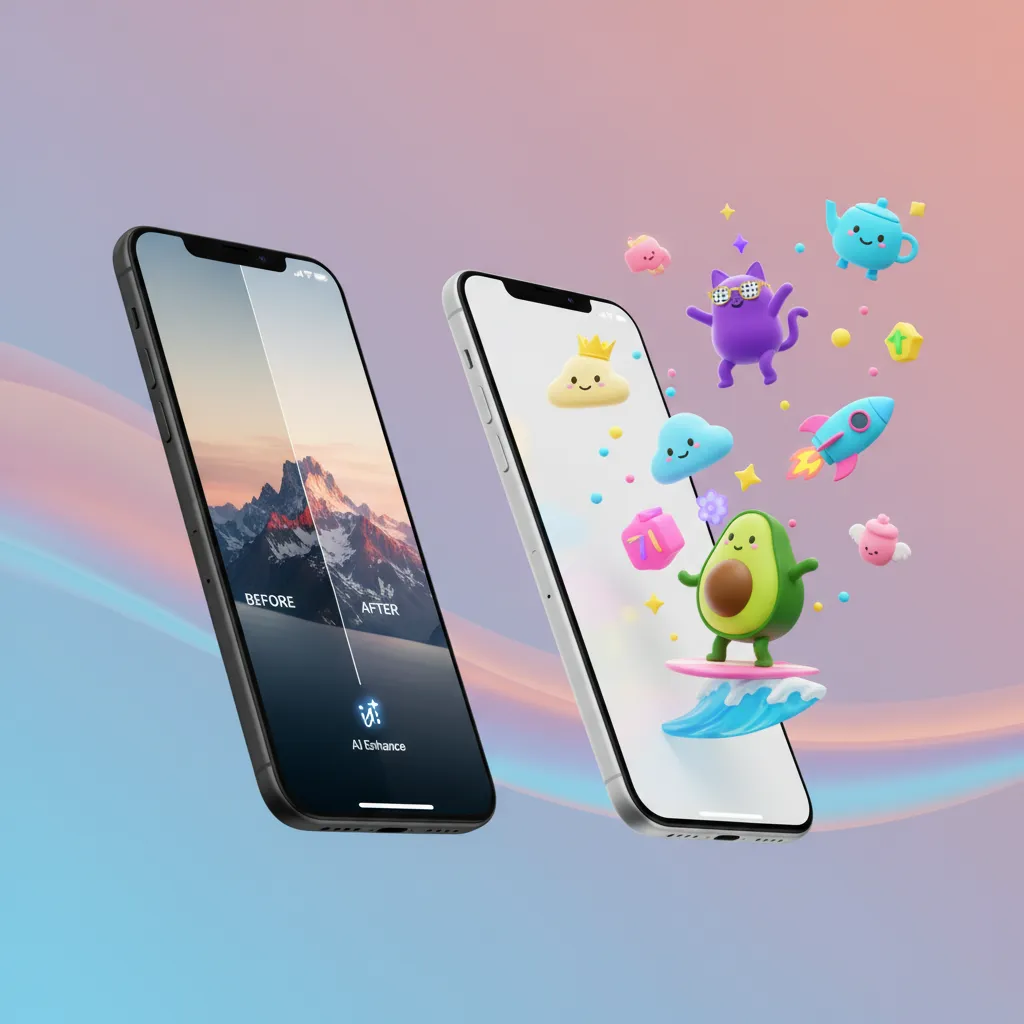
Introduction: The Dawn of Apple Intelligence
The iOS 18 update is not just an iteration; it represents a fundamental shift in how we interact with our most personal devices. For years, Apple has focused on privacy and security; now, with the introduction of Apple Intelligence, the focus pivots to personalization, productivity, and seamless AI integration right where you need it most—in your core apps. This suite of on-device and server-based generative models changes the game, bringing powerful capabilities that feel intuitive and genuinely helpful.
Two of the best iOS 18 features that showcase this transformation are the radically redesigned iOS 18 Photos app and the highly anticipated, delightful feature known as Genmoji.
If you’ve been looking for an iOS 18 guide to understand how these tools work, how they leverage Apple AI features, and how they stack up against existing iPhone photo editing apps, you’re in the right place. We’ll dive deep into the AI-powered editing capabilities, like the “Clean Up” tool, and walk through exactly how to create Genmoji to elevate your messaging game. This comprehensive look is designed for iOS 18 for beginners and seasoned users alike, providing essential iPhone tips and tricks for mastering Apple’s new AI ecosystem.
Harnessing the Power of Apple Intelligence in iOS 18
Before exploring the specific features, it’s crucial to understand the engine driving them: Apple Intelligence. This is Apple’s personalized intelligence system built on foundational models that operate contextually, prioritizing user data privacy by performing many tasks directly on the device (on-device processing) when possible.
Apple Intelligence is the key to unlocking the new era of iOS 18 features, allowing the software to understand the semantic meaning of your requests, photos, and messages, moving far beyond simple Siri commands. This system powers everything from enhanced notification management to text summarization and, most visually striking, the generative capabilities in the Photos app and iMessage.
The Compatibility Caveat: Who Gets the AI Magic?
While the core iOS 18 update will be available for many devices, the advanced features relying on Apple Intelligence have a significant hardware requirement. To ensure fast, on-device processing and robust performance, most of the generative AI tools—including Genmoji and the advanced Clean Up tool—require an iPhone equipped with the A17 Pro chip or later.
This means Apple Intelligence compatibility is currently limited to the iPhone 15 Pro and iPhone 15 Pro Max, and later models. While this might disappoint some users, it underscores Apple’s commitment to delivering high-quality, real-time AI experiences that older hardware simply cannot sustain efficiently.
The Radical Redesign of the iOS 18 Photos App
The Photos app has long been the repository for our digital memories, but sometimes the sheer volume of images made finding or curating them cumbersome. The iOS 18 Photos app addresses this with a major overhaul focused on automation and intelligent organization, making it one of the most useful new iPhone features.
A Unified View and Smart Collections
The most immediate change is the unified view. Gone are the separate tabs for Library and For You. Instead, the redesigned app integrates a grid of photos with new, dynamic sections called “Collections” beneath them.
The Photos app redesign leverages Apple Photos AI to automatically curate and organize your library into meaningful groups. This goes beyond simple date or location grouping. The AI smartly recognizes themes, people, pets, and activities to create Photos app collections such as:
- Recent Days: A recap of what you’ve shot in the last week.
- Trips: Automatically created albums for travel, bundling photos from specific timeframes and locations.
- People & Pets: Enhanced recognition and categorization.
- Memories/Favorites: Intelligently curated highlights that surface relevant moments.
This intelligent clustering reduces the need for manual organization, allowing you to instantly revisit moments like “Winter Ski Trip 2024” or “Birthday Party Highlights” without scrolling through thousands of unrelated pictures.
[Related: ai-personalized-health-future-wellness/]
AI Photo Editing Power: Mastering the Clean Up Tool
The most impactful AI photo editing addition in iOS 18 is the dedicated Clean Up tool iOS 18. While third-party iPhone photo editing apps have offered similar capabilities (like object removal) for years, Apple’s native integration is seamless, intuitive, and leverages the power of Apple Intelligence for superior results.
How to Remove Objects from Photo iPhone
The core purpose of the Clean Up tool is to effortlessly remove objects from photo iPhone images that distract from the main subject—whether it’s a photobomber, an unsightly power line, or a misplaced piece of trash.
Here’s a quick guide on its simple use:
- Select a Photo: Open any image in the Photos app and tap “Edit.”
- Access Clean Up: Look for the new brush icon in the editing menu, labeled “Clean Up.”
- Brush Over: Simply use your finger or Apple Pencil to brush over the object or person you wish to remove.
- AI Calculation: Apple Intelligence immediately analyzes the surrounding area—texture, light, background patterns—and seamlessly fills the space, making the distracting element vanish.
- Review and Save: Tap “Done” to finalize the AI’s work.
This is a powerful utility, especially for amateur photographers who often capture perfect moments only to have them ruined by minor imperfections. The Clean Up tool iOS 18 represents a massive leap for native mobile editing capabilities.
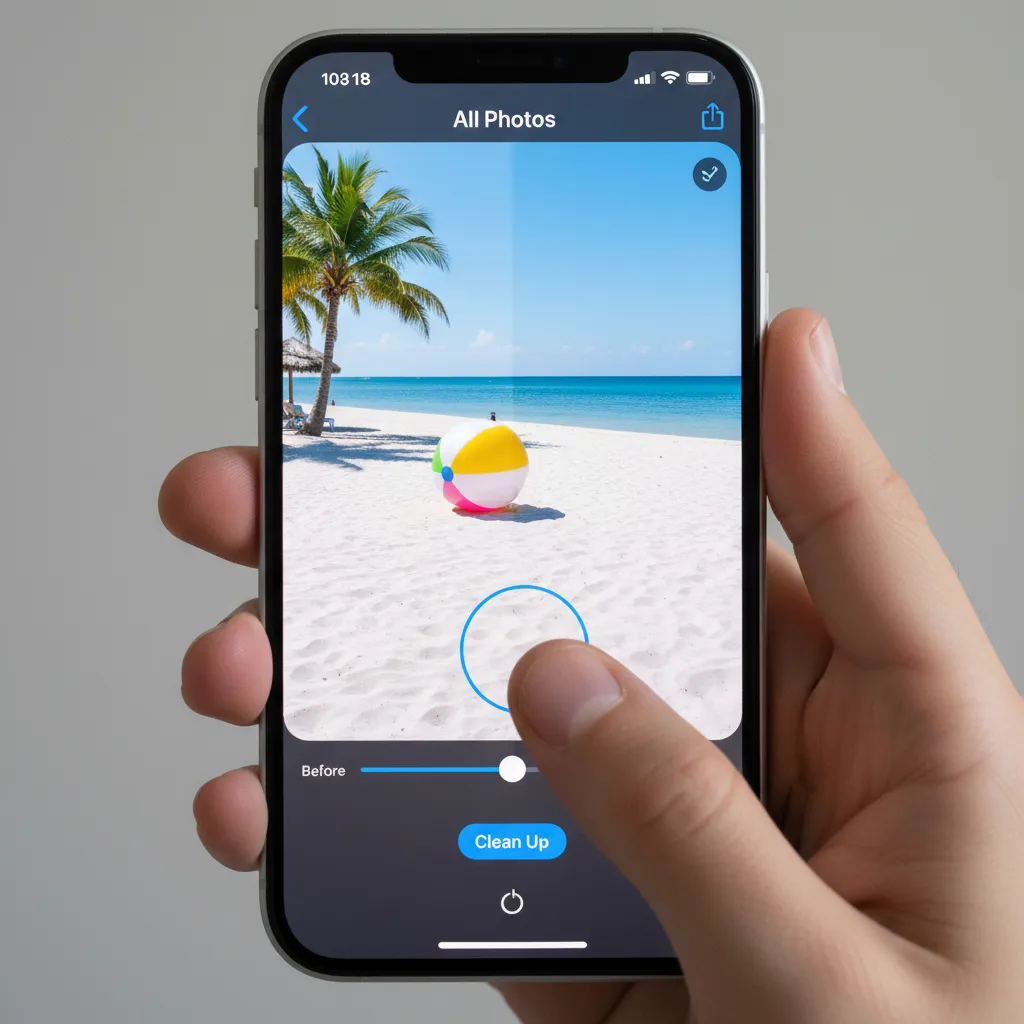
The results are often shockingly realistic because Apple’s generative model understands the context of the image. It doesn’t just smudge; it reconstructs the background based on deep learning of real-world scenarios, making it highly effective for complex backgrounds like sand, grass, or textured walls.
[Related: ios-18-ai-photo-editing-tools-explored-apple-intelligence/]
The Intelligent Integration: Image Wand
Another key feature supporting the iOS 18 Photos app is the Image Wand iOS 18. While less about removal and more about refinement, this AI-powered tool can analyze a basic sketch or a slightly crooked composition and enhance it dramatically, correcting lighting, improving cropping, or even turning simple doodles into finished visuals. These small, powerful additions underscore Apple’s commitment to making every user feel like a competent editor, relying on the sophisticated models of Apple Intelligence to do the heavy lifting.
Introducing Genmoji: Custom Emojis Reimagined
If the Photos app handles your memories, then Genmoji handles your personality. This fun, highly creative feature leverages the AI image generator Apple developed to let users craft bespoke emojis on the fly, transforming basic text reactions into expressive, personal, and utterly unique visual statements.
What is Genmoji?
What is Genmoji? Simply put, Genmoji is a generative AI feature integrated into the Messages app that allows you to describe an emoji you want, and have Apple Intelligence instantly create it.
Instead of being stuck with the 3,000+ standard Unicode emojis, Genmoji unlocks an infinite library of creativity. Think of an emoji of “A sloth wearing a chef hat and riding a skateboard.” You type the description, and Apple Intelligence delivers the custom emoji iPhone graphic instantly.
This is a game-changer for iMessage new features, as it allows for nuanced, context-specific communication that standard emojis simply can’t achieve. If a standard emoji is a universally recognized word, a Genmoji is a highly personalized inside joke or a perfect visual representation of a complex emotion.
A Look at Genmoji Examples
The power of Genmoji lies in its flexibility. Users are already sharing incredible Genmoji examples illustrating the depth of Apple’s generative AI:
- The Contextual Reaction: A Genmoji of “A puppy crying happy tears while holding a tiny birthday cake” for a friend’s emotional birthday message.
- The Inside Joke: A Genmoji of “Our neighbor’s cat trying to operate a drone” (perfect for niche group chats).
- The Specific Representation: A Genmoji of “A red guitar shaped like a lightning bolt” for discussing music projects.
These custom creations can be saved to your Genmoji library, added as stickers to messages, or even dropped into message threads just like traditional emojis. This makes the feature a genuine AI emoji generator that personalizes every interaction.
How to Create Genmoji and Use Them in iMessage
The process for Genmoji creation is designed to be seamless and fast, recognizing that most users are looking for a quick reaction rather than a lengthy design session. Here is a step-by-step how to use Genmoji guide:
Step 1: Accessing the Genmoji Tool
The Genmoji feature lives directly within the iMessage keyboard and is accessible wherever standard emojis are found.
- Open iMessage and start a conversation.
- Tap the emoji/sticker icon next to the text field.
- You will see a new option or tab specifically for Genmoji.
Step 2: Describing Your Custom Emoji
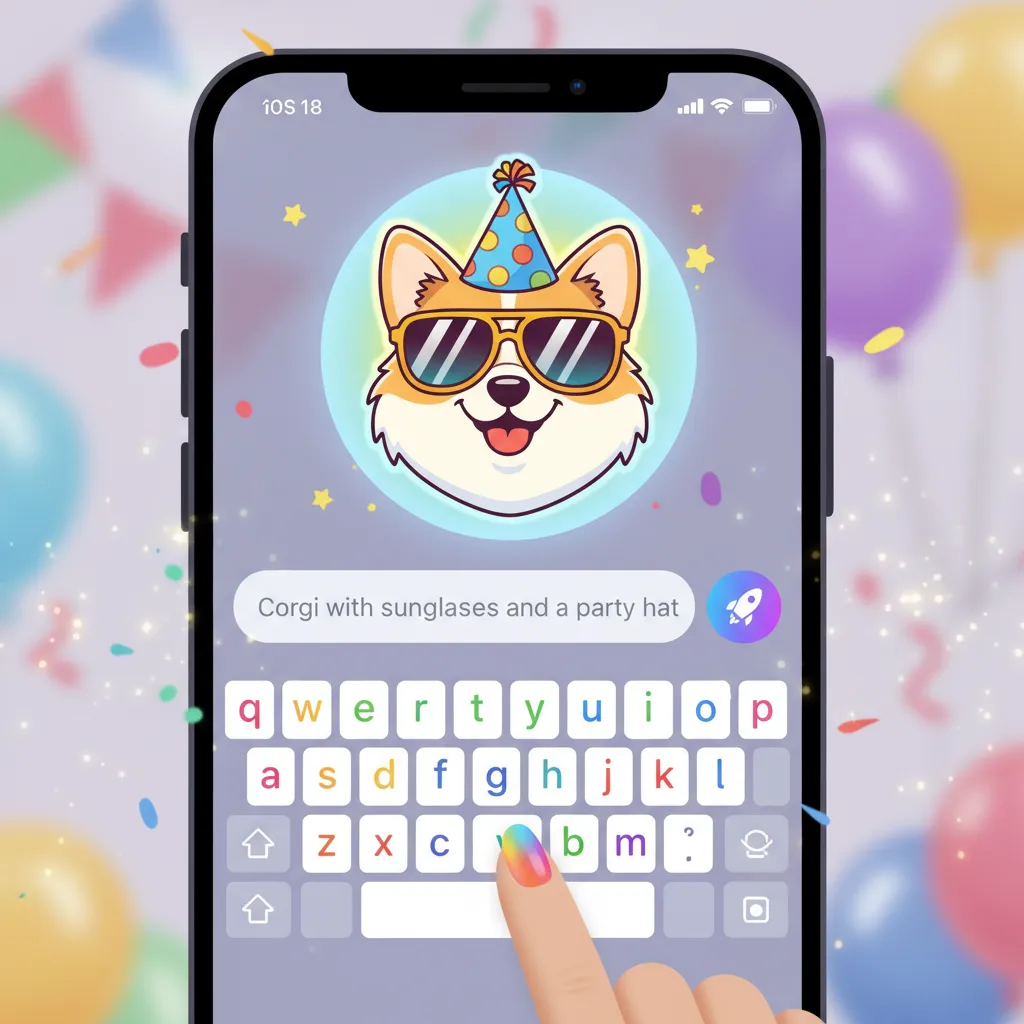
This is where you utilize Apple Intelligence. The system will prompt you to type a description of the desired Genmoji.
- Tap the “Create” button or the generative text field.
- Type a detailed but concise description, such as: “A pirate ship sailing on a pizza slice.”
- Apple Intelligence processes the request using its AI image generator Apple capabilities.
- Within seconds, the system provides several unique Genmoji options matching your prompt.
Step 3: Refinement and Usage
Once generated, you can quickly select your favorite version.
- Tap on the preferred Genmoji to select it.
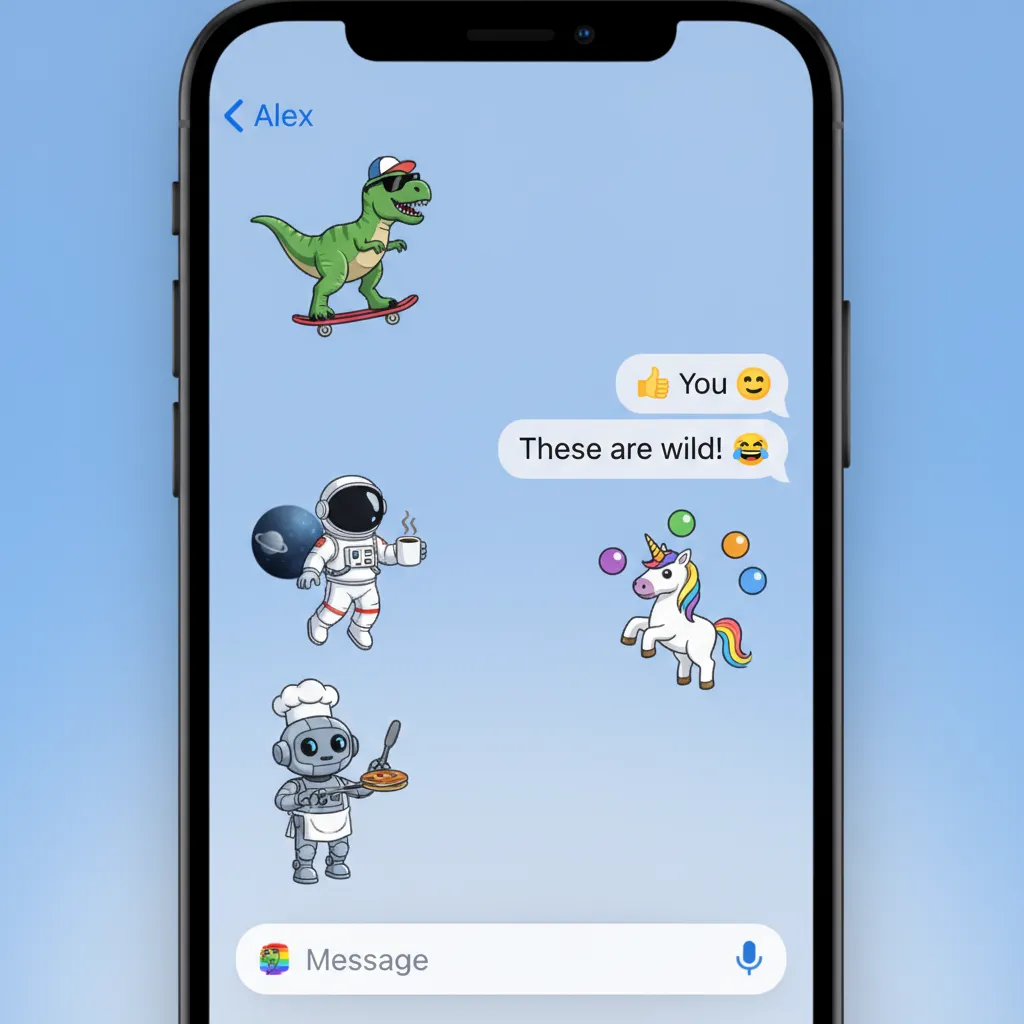
- It can then be sent as an iMessage new feature sticker, or placed directly into the message text field, similar to a standard emoji.
- Genmoji are stored in a new section of your sticker drawer, allowing for instant reuse without having to re-generate the same design every time.
Genmoji and Privacy: The Apple Approach
One key differentiator for Genmoji is its tight integration with Apple’s privacy architecture. The initial generation often leverages the secure on-device models, ensuring that the unique, sometimes sensitive, descriptions you use to create your custom images remain private and tied only to your device and your account, adhering to the strict privacy standards that Apple Intelligence prioritizes.
Beyond Photos and Emojis: Exploring iOS 18 Hidden Features
While Genmoji and the Photos app overhaul are the headline features, iOS 18 update is packed with smaller, yet significant, iOS 18 hidden features that enhance personalization and utility, making the overall experience feel fresh and responsive. These additions further demonstrate the power of Apple Intelligence working across the operating system.
Home Screen Customization
Finally, users have greater control over their home screen layout. Icons can be tinted, and widgets offer more flexibility in placement. This is a highly requested personalization update that gives users the ability to create themes and customize the look of their device far beyond previous limitations.
Control Center Rework
The Control Center has been reorganized into categorized groups (Media, Home, Connectivity) and is now customizable with third-party app controls. This means faster access to essential tools and smart home devices, streamlining the process of quick adjustments.
Improved Mail and Notes
Apple Intelligence extends into productivity apps. The Mail app gains categorization features, automatically sorting emails into Primary, Transactions, Updates, and Promotions. The Notes app now includes features like Math Notes, which allows users to solve math problems directly within their notes by writing out the equation.
[Related: ai-in-gaming-revolutionizing-worlds-players-and-development/]
Writing Tools: A Seamless Assist
Apple Intelligence introduces system-wide Writing Tools that can rewrite, proofread, and summarize text across Mail, Notes, Pages, and third-party apps. This foundational AI capability elevates text creation, making it an essential iOS 18 guide topic for anyone focused on efficiency.
- Rewrite: Instantly change the tone or phrasing of a paragraph (e.g., from casual to professional).
- Proofread: Catching not only spelling and grammar but also suggesting better word choices and sentence flow.
- Summarize: Condensing lengthy emails or documents into digestible bullet points.
This ensures that whether you are drafting a critical work email or a fun social media post, you have the backing of advanced, on-device AI to make your communication clearer and more impactful.
Why These Features Matter for the Modern iPhone User
The introduction of the iOS 18 update, driven by Apple Intelligence, fundamentally redefines the iPhone experience. It moves from being a powerful tool that responds to your commands to a personalized assistant that anticipates your needs and enhances your creativity.
The iOS 18 Photos app addresses the paradox of digital abundance—we take so many photos we often forget what we have. By automatically creating coherent, curated Photos app collections, the AI transforms the library into a living, manageable archive. Coupled with the powerful Clean Up tool iOS 18, users are empowered to refine their images without needing complex external iPhone photo editing apps.
Similarly, Genmoji is more than just a novelty; it’s a tool for emotional and highly specific communication. In a world where visual language is increasingly important, having a simple AI emoji generator ensures that your messages are perfectly calibrated, contributing significantly to a richer, more personal messaging environment.
These advancements are cohesive and well-thought-out, representing a mature, privacy-conscious approach to AI integration. For anyone seeking the ultimate set of new iPhone features and the most sophisticated iPhone tips and tricks, mastering the AI capabilities in iOS 18 is essential for maximizing the value of their device.
Conclusion: The Personalization Revolution
The iOS 18 update, centered around Apple Intelligence, is the most transformative mobile operating system release in years. By focusing generative AI on two of the most personal and frequently used aspects of the iPhone—photos and messaging—Apple has delivered a suite of powerful, yet accessible, tools.
From effortlessly achieving professional-grade edits using the Clean Up tool iOS 18 within the iOS 18 Photos app, to the pure, unbridled creative freedom offered by Genmoji, the future of personalized computing is now accessible in your pocket. These iOS 18 features aren’t just about showing off technological prowess; they are about enhancing productivity and allowing for deeper, more personal expression.
If your device supports the Apple Intelligence compatibility requirements, exploring how to create Genmoji and experimenting with the native AI photo editing tools should be your first priority. Dive into the iOS 18 guide and discover how this update turns your iPhone into a truly smart, intuitive, and unique extension of yourself.
FAQs (People Also Ask)
Q1. What devices are compatible with Apple Intelligence features like Genmoji?
The advanced Apple Intelligence features, including Genmoji, the Clean Up tool, and generative writing tools, require an iPhone with the A17 Pro chip or later. This currently includes the iPhone 15 Pro and iPhone 15 Pro Max, and subsequent models. Some features may also be available on iPads and Macs with M1 chips or later.
Q2. How does the Clean Up tool in iOS 18 compare to Google’s Magic Eraser?
The Clean Up tool iOS 18 offers similar functionality to Google’s Magic Eraser by using AI to intelligently identify and remove objects from photo iPhone images. Apple Intelligence processes the surrounding area to seamlessly fill the gap. While both are highly effective, Apple’s native integration within the iOS 18 Photos app offers a more integrated and faster experience for iPhone users.
Q3. Is Genmoji the same as using a standard emoji or sticker?
No, Genmoji is a fundamentally different feature. Standard emojis are based on a fixed Unicode set, and stickers are pre-made images. Genmoji is an AI emoji generator where you type a description (e.g., “A dancing taco wearing a space helmet”), and Apple Intelligence instantly creates a unique, custom graphic (a custom emoji iPhone graphic) based on that prompt, which you can then send as a sticker.
Q4. Can I share the Genmoji I create with friends who don’t have iOS 18?
Yes. While Genmoji is created on devices with Apple Intelligence compatibility, the resulting graphic is sent as a standard image sticker (likely a high-resolution PNG or GIF) within iMessage. Friends on older operating systems or Android devices will receive it as a regular image or sticker file, though they won’t be able to generate their own.
Q5. What is the biggest change in the iOS 18 Photos app redesign?
The biggest change is the shift from a tab-based interface to a unified, scrollable view that automatically organizes content into “Collections.” The Photos app redesign heavily relies on Apple Photos AI to curate images into meaningful groups (like Trips, People, Pets) without requiring manual effort, making the library more accessible and easier to navigate.
Q6. Is the generative AI for Genmoji and Photos handled on-device or in the cloud?
Apple Intelligence uses a hybrid approach. For smaller, private tasks like creating Genmoji or using the basic Clean Up tool iOS 18, the AI processing often happens on-device to prioritize user privacy. For more complex, less private tasks, or when more processing power is needed, Apple uses Private Cloud Compute, which routes requests through specialized, secure Apple servers that are architecturally incapable of accessing user data.
Q7. Are there limits to what I can ask the Genmoji AI to create?
Yes. As an AdSense-compliant and safety-focused company, Apple has built-in safety filters for the Genmoji and other generative tools. The AI will refuse to create images that violate content policies, including explicit, harmful, or copyright-infringing content, ensuring the feature remains safe and appropriate for all users and complies with guidelines for the iOS 18 update.
Q8. What is the Image Wand iOS 18 feature?
The Image Wand iOS 18 is a feature within the Notes app and other contexts that uses Apple Intelligence to enhance simple sketches or drawings. By tapping the Image Wand, a user can turn a basic doodle into a refined, high-quality, and more aesthetically pleasing graphic illustration, effectively acting as an intelligent design assistant.